
The main reason people don't use a teleprompter isn't that they don't know teleprompters exist. It's that they think using one will make them look fake.
It's a fair worry. Everyone has seen a video where someone is clearly reading, eyes tracking left to right, voice flattening out into that recital tone. Nobody wants to be that. So instead you try to hold a five-point script in your head, hit record, lose the thread four seconds in, and start over. And over.
Worth dealing with that objection first, because it's the thing standing between most people and recording video consistently.
Does a Teleprompter Make You Look Fake?
When someone looks like they're reading, we assume it's a performance problem. They read it flat, they didn't rehearse, they aren't a natural on camera.
Usually it's mechanical.
What actually gives someone away is their eyes. Text sitting at the bottom of a screen means their eye line is several inches below the lens for the whole video, and the small side-to-side movement of reading is visible from across a room. Your viewer isn't consciously spotting either of those. They just come away feeling they were being read at rather than talked to.
Which means the fix is largely a matter of where the text is, not how well you perform. Put the script right up next to the lens and most of what reads as fake goes away before you've changed a single thing about your delivery.
The delivery half is real too, it's just smaller and it's quickly learned: stay a few words ahead, then look at the lens and say them rather than narrating along. We went through that technique properly in our roundup of free teleprompter apps, so it's covered.
What a teleprompter buys you is attention. Recording means doing several things at once: remembering the next point, finding words for it, keeping your energy up, sounding like someone who cares, looking at the camera. A prompter takes the first two off your plate, and what's left is the part people actually respond to. Not whether you memorized it. Your energy, whether you seem engaged, whether you sound interested in your own material.
Compare that honestly against the alternative. Winging it doesn't read as authentic. It reads as unprepared: more filler, more restarts, and a point that takes ninety seconds to arrive at instead of fifteen. The people who come across most naturally on camera are usually the most prepared, not the least.
What Most Teleprompter Apps Get Wrong
Once you're past the fake worry, the question becomes which one to use, and this is where most of them stop being useful.
Nearly every teleprompter app does one thing: it scrolls your text. That was solved decades ago. If scrolling text is genuinely all you need, use something free and don't overthink it — we rounded up the best free teleprompter apps for exactly that.
But if you're recording every week, the scrolling isn't where your time goes. It goes here:
The text is in the wrong place
Your camera is at the top of your screen. If your script scrolls along the bottom, or off in a side panel, your eyes point away from the lens for the entire video. More on this below, because it's the one that matters most.
It doesn't record
Most prompters scroll and nothing else. So you run the prompter in one window and a camera app in another, managing two pieces of software while trying to look relaxed, and end up with a raw file you still have to move somewhere.
You still have to write the script and paste it in
The script has to come from somewhere, and for most people that's a Google Doc. Write it, format it so it's readable while scrolling, copy it, paste it into a janky text box, fix the formatting again. Every video, forever.
It ends when you stop recording
Recording is one step. After it: subtitles, editing, a caption per platform, scheduling, and turning the video into written content if you want the reach. A standalone prompter knows about none of that.
Why the Script Should Sit Above Your Camera
This is the detail almost nobody shops for and it changes every video you make.
The closer your script is to the physical camera on your computer, the more your eyes look like they're on the camera. That's the whole mechanism. Text at the bottom of the screen means your eyes sit well below the lens for the entire take. Move that text up next to the camera and the gap your eyes have to cover shrinks to almost nothing.
Viewers can't diagnose this. They can't tell you're reading. They just come away feeling you were slightly distant, and they scroll on. You get a marginally worse result on every video with no feedback explaining why.
There's a second reason to put it up there that gets overlooked: it lets you see yourself while you're recording. Your script and your own face end up in the same place, so you can tell whether your framing is right and whether you look how you want to look, without your eyes darting to a self-view window somewhere else on screen.
What About Just Sticking Notes Next to Your Webcam?
Honestly? It works. Right up until you scale.
For one video it's completely fine, and it gets the text near the lens, which is the main thing. The problem is what happens when you're recording five in a sitting. Now you're rewriting the note between every take, running out of space on it, and squinting at your own handwriting from three feet away. The thing that made one video easy is what makes a batch not happen.
If you record occasionally, use the sticky note and don't let anyone sell you something. If you're recording every week, the note is the bottleneck.
The Teleprompter We Built
The honest answer to "why build another teleprompter" is that we didn't set out to. CreateSocial is a full social media suite: it learns who you are, comes up with the scripts, records the video, edits it, and posts it. The teleprompter exists because it's the middle of that chain, and no external app can sit in the middle of a chain it isn't part of.
That's the actual difference. Other prompters open on an empty box waiting for you to paste something in. Ours opens with your script already on it, because the thing that wrote the script and the thing that's about to record you are the same system.
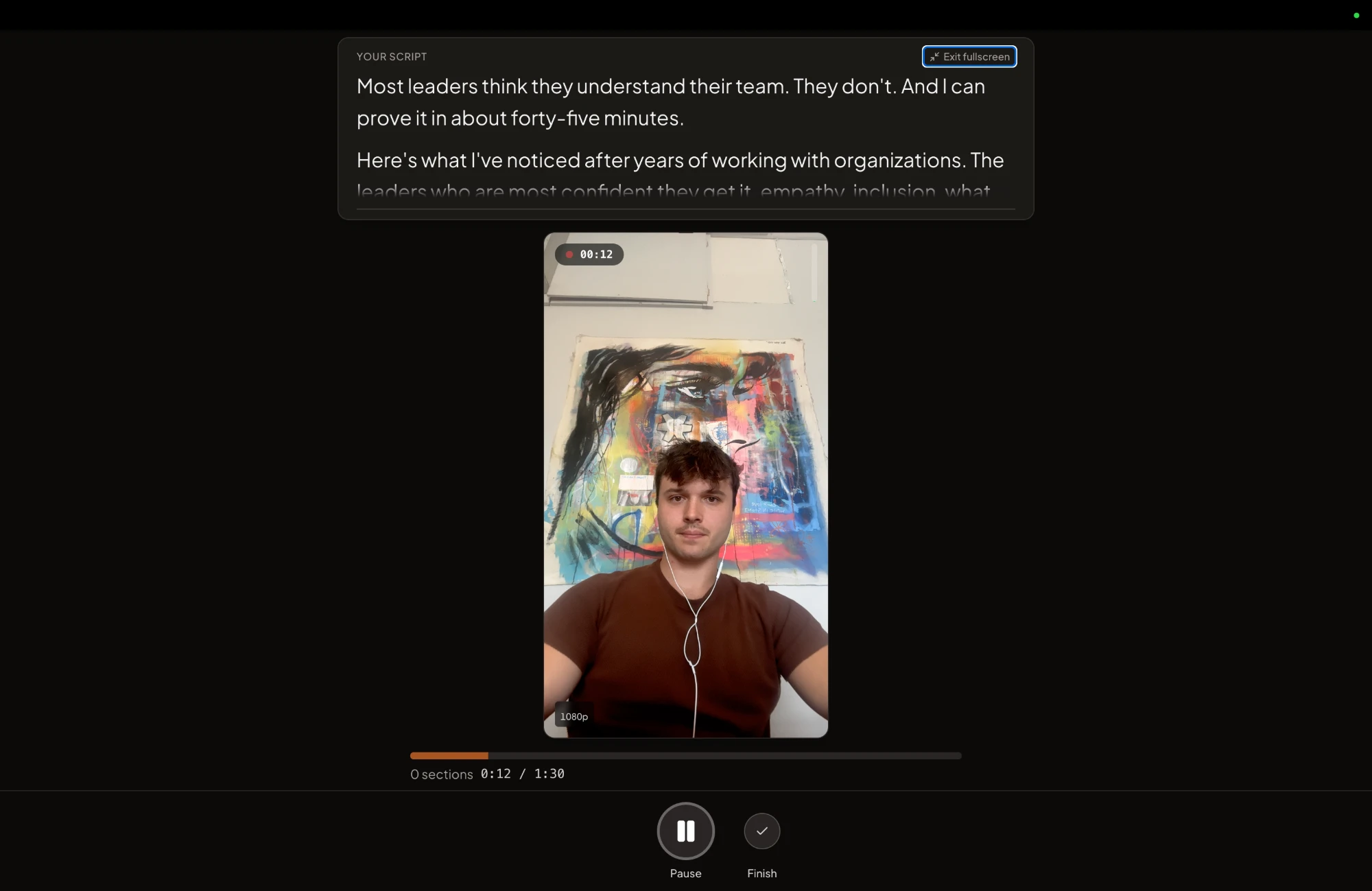
The script sits directly above your camera. Not along the bottom, not in a side panel. When you start recording the studio goes fullscreen and everything else clears out, so it's your script, your face, and nothing else. There's nowhere else for your eyes to go, which is the point.
Your script is already on it when you sit down. This is the part that saves the most time and the hardest to appreciate until you've lived without it. Your ideas come out of your knowledge base — your website, transcripts of your past videos, blog posts, client stories, industry research, competitors worth watching — so the system already knows what you talk about and how you talk about it. Approve an idea and the script is on your teleprompter, formatted and ready to read. No document, no copy-paste, no fixing the line breaks. You can write your own from scratch too, and edit a line right there in the studio if it isn't landing when you say it out loud.
The rest is the kind of detail you only notice when it's wrong:
- It holds four lines and doesn't reflow. Text that re-wraps mid-sentence while you're reading it is how you lose your place, and most prompters do it constantly as they scroll.
- Manual scroll by default. The script waits for you and you set the pace. Auto-scroll is there, runs Slow to Very fast, and starts when recording actually starts rather than during the countdown, so you're not three lines behind before you've said a word.
- Scripts or talking points. I use a script for everything, including long videos, and I don't buy the standard advice that long-form should be bullets. Tight beats loose at any length, and a long scripted video sounds stiff because of delivery, not because it was scripted. Talking points are there if you prefer them, and plenty of people do.
Recording in Sections Is the Biggest Time Saver
Of everything in this post, this is the one that gives you the most time back, and almost nobody else does it.
Normally a video is one continuous take. Which means a mistake at any point in it is a mistake in the whole thing. Stumble at six minutes into a seven-minute video and your options are start again or go and fix it in an editor later. Both are miserable, and it's the specific reason long videos get put off for weeks.
Recording in sections means one take per point. Fluff a point, delete that section, record that section again. Everything before and after it is untouched, and the prompter rewinds to where that section started so you can go straight back in. There's no editing involved and no starting over.
What that changes isn't really the recording, it's the stakes. When a mistake costs you thirty seconds instead of the whole video, you stop tensing up about making one, and you stop doing the thing where you restart a take because the first sentence wasn't perfect. You just keep going.
That's the mechanism behind the numbers. A short-form video that used to take ten minutes to record takes one or two. We've had creators batch record an entire month of content in a single sitting, and they can do that because a bad thirty seconds doesn't cost them the session.
The Same Thing on Your Phone
Your laptop camera is the one you'll use most, because it's the one already open. But it's rarely the best camera you own.
The CreateSocial iPhone app runs the same teleprompter and the same section recording, using your phone's camera instead. Same script, already loaded. Same one-take-per-point. The finished video lands straight in your library, so it turns up in exactly the same place as anything you record at your desk and goes through the same editing, captions and scheduling afterwards.
It's the same workflow, which is the only reason it's worth mentioning. Recording on your phone and then having to get the file somewhere useful is the thing that puts people off using the better camera.
Fixing Eye Contact After the Fact
Even with the script under the lens, some takes still have you reading. Long scripts, a small laptop screen, an external monitor, sitting further back than usual.
So there's a button in the editor for it. One click and we adjust your eyes so you're looking at the camera, subtle enough that your natural glances and expressions stay yours.
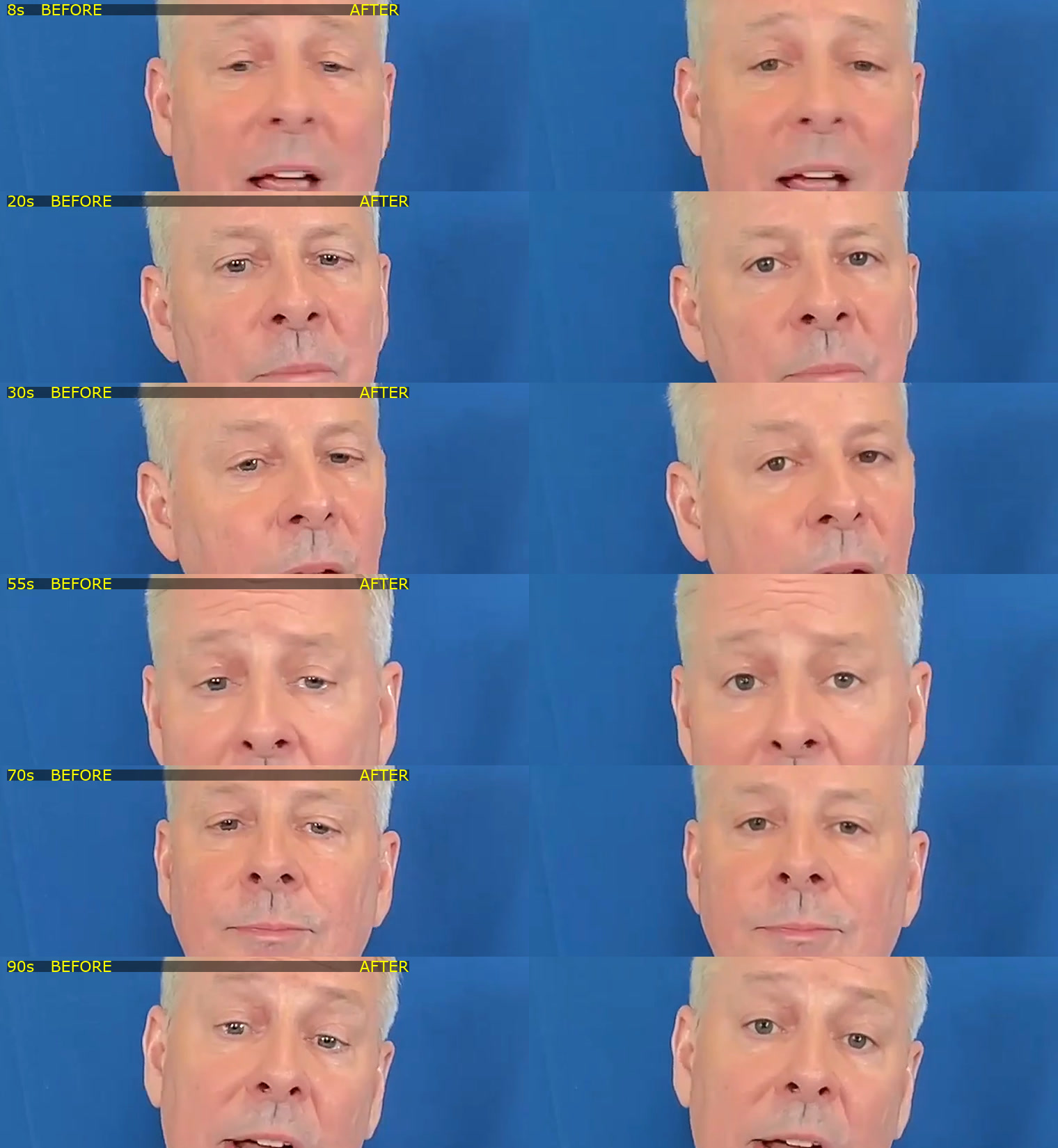
That's an actual customer, not a demo. He'd finished recording worried about how his eyes looked, because he knew he hadn't been looking straight down the lens the whole time. That's the exact worry this removes.
It takes a few minutes, you get an email when it's done, and you can keep editing while it runs. Then you get a toggle so you can flip between both versions and pick the one you like. I'd run it on everything, honestly — it's free, and you're choosing between two versions at the end rather than committing to anything. We went into more detail in our breakdown of AI eye contact correction.
What to Look For
If you're comparing options, these are the things that change your week:
- Where the text sits. Near the lens, or you're reading off-axis on every video. Everything else here is secondary to this.
- Whether it records. One window beats two.
- Scripts and talking points. Most prompters only do scripts. Whichever you prefer, you want the app to support it rather than forcing the choice.
- Where the script comes from. Still writing every script in a doc and pasting it in? The prompter saved you nothing.
- Section recording. The one that gives you the most time back, and the one almost nobody offers. Redoing one part instead of the whole video is the difference between finishing a batch and abandoning it.
- What happens after you stop. Subtitles, editing, captions, scheduling. If it stops at the raw file, most of the work is still ahead of you.
The Bottom Line
If you need scrolling text occasionally, use something free and move on.
If you're recording every week to grow a business, it's worth picking properly, because the teleprompter is what stands between "I'll film that this afternoon" and "I'll film that eventually." Get the script above the lens, record in sections so a mistake costs thirty seconds instead of the whole video, and have somewhere for the finished file to go.
That's what we built. Ideas come out of your own knowledge base and land on the teleprompter, you record in sections, subtitles are generated, captions are written for all six platforms, and one click turns a video into a LinkedIn post, an X thread, a blog post, or a newsletter. There's a free trial if you want to see what it does to your recording time.
Whatever you land on, use a teleprompter. Looking natural on camera and being unprepared are not the same thing, and the people who look the most natural are almost never winging it.