

The short answer (updated October 2026):
- Zoom has no built-in teleprompter. The free fix is a narrow notes window pushed right up under your webcam. At laptop distance, keep the line you read within an inch of the lens, 2 inches at most.
- Eye contact breaks because you look at the screen, at their face and your notes, while the lens sits above it. Viewers barely notice a small drop. They notice sideways reading far more.
- For a dead-on eye line, use a glass prompter. They start at $119.97, and a $299.99 model can show the meeting window itself in front of the lens.
- On some Windows PCs, Windows Studio Effects or NVIDIA Broadcast corrects your gaze live, in Zoom and any other camera app.
- For recorded videos, like course lessons and LinkedIn videos, use a recording studio with a teleprompter by the lens and eye contact correction in the edit.
You're on a discovery call with your notes open. Every time you check them, you look like you're reading. Because you are. Zoom has no teleprompter of its own, so the fix lives around it: a narrow notes window right under the webcam, glass in front of the lens, or live gaze correction on the right Windows PC. This page compares six setups on cost, eye contact and setup time, then gives you a call script sized to read at a natural pace.
Eye contact breaks because the webcam sits above everything you look at
On a call you look at two things: the other person's face and your notes. Both sit on the screen, and the webcam sits above it. So the camera records you looking down, even while you give the person your full attention.
How far down decides whether anyone notices. Milton Chen's 2002 CHI study found we are "an order of magnitude less sensitive to eye contact when people look below our eyes than when they look to the left, right, or above our eyes." A 2024 preprint went a step further. Its advice is to "look just below the camera lens." In its tests, perceived eye contact peaked about 2 degrees under the lens and held up to about 3 degrees. Older studies it cites put the edge at 5.5 degrees below. And in a live conversation, Chen found people saw eye contact at even bigger drops.
Now put those angles on a laptop, 24 inches from the webcam.
| Where your eyes land | Inches below the lens | Angle | Reads as eye contact? |
|---|---|---|---|
| Top line of a notes window pushed up under the webcam | 1 | 2.4° | Yes, right by the 2° sweet spot |
| Bottom line of a short notes window | 2 | 4.8° | Borderline. Past the 2024 study's 3°, inside the older 5.5° edge |
| Their face, mid-screen on a 14-inch laptop (rough) | 4 | 9.5° | No |
| Notes at the bottom of a 14-inch laptop screen (rough) | 8 | 18.4° | No |
| Paper notes on the desk | 15 | 32.0° | No. You look like you're reading. |
Source: thresholds from Gao et al., 2024, and the older studies it cites. The angles are our arithmetic: the arctangent of the inches below the lens over the 24-inch distance. Measure your own screen with a ruler.
Look at row three. You lose eye contact by looking at the person, which is exactly what you're meant to do. So every fix below does one of three things. It moves their face closer to the lens, moves your notes closer to the lens, or moves your eyes in software.
Six ways to read notes on Zoom, compared
Five setups work on a live call. The sixth is for videos you record instead of a call, or after one.
| Setup | Cost | Eye contact | Live or recorded | Setup time (our estimate) | Source |
|---|---|---|---|---|---|
| 1. Notes stuck under the webcam | Free | Good if the note touches the lens. Poor for paper on the desk. | Live | Seconds | Gao et al. |
| 2. A narrow window right under the camera | Free | Good within an inch or two of the lens | Live or recorded | A few minutes | Gao et al. |
| 3. A teleprompter app inside Zoom | Varies by app | Depends on placement. Zoom opens apps in a side panel. | Live | A few minutes | Zoom support |
| 4. A glass (beam-splitter) prompter | $119.97 to $299.99 | On the lens. The meeting window sits in front of the camera. | Live or recorded | The longest: mounting, a camera behind the glass, display settings | Glide Gear, Elgato |
| 5. Live eye contact correction | Free on supported Windows hardware | Corrected in software as you talk | Live, in any camera app | A few minutes | Microsoft, NVIDIA |
| 6. A teleprompter studio, then eye contact correction in the edit | CreateSocial: $129 a month, or $99 billed annually | Script by the lens, eyes corrected afterward | Recorded | A few minutes | CreateSocial pricing |
Checked against Zoom, Microsoft, NVIDIA, Elgato and Glide Gear pages on October 26, 2026.
Setup 6 is ours. For the videos you record instead of a call, like a course lesson or a weekly update, CreateSocial puts your script right by the lens and corrects your eye contact in the edit. Try it free on your next one.
Notes stuck under the webcam are free but hold only a few words
The cheapest teleprompter is a sticky note. Put it on the screen bezel or the top of the screen, right under the webcam, so its top edge almost touches the lens. Write five or six keywords in thick marker. That puts your reading spot in the first row of the table above.
It has costs. A note covers the top of the call. Small handwriting makes you lean in, and leaning in looks worse than a glance down. It holds keywords, not sentences.
Paper flat on the desk is the worst version of this. It sits around 32 degrees down, the last row of the table, and every glance at it shows. Use a sticky note when you need three reminders: their name, their company and the one question you must not forget. Anything longer belongs in a window.
A narrow window right under the camera is the best free setup
A notes window pushed up under the webcam gives you most of what a teleprompter does, for nothing. Any plain text window works. So does a free browser teleprompter, if you want it to scroll for you. Some desktop apps go further and float your script over the call. Our roundup of free teleprompter apps compares them, the overlay included. Setup takes a few minutes:
- Paste your notes into a plain window. Use a font you can read easily from where you sit, so you never lean in.
- Make the window narrow, about 3 inches wide, so each line holds six to eight words. Long lines pull your eyes sideways, and sideways is the direction viewers notice most.
- Drag it to the top center of the screen, right under the webcam. Read from the top inch of the window, and never more than 2 inches below the lens.
- Shrink the Zoom window and drag it up so their face sits just under your notes. Now looking at them costs less too.
- Do a test call with a friend, or record yourself, and watch where your eyes go.
What you give up: you scroll by hand, the window covers part of the call, and a 13-inch laptop gets crowded fast. On a large monitor with the webcam on top, this setup is hard to beat. Presenting slides at the same time? Our guide to reading notes while you present PowerPoint covers speaker notes.
What Zoom itself offers: meeting apps, Hide Self View and one-window sharing
We searched Zoom's support site and read its app release notes back to November 2025. Neither lists a built-in teleprompter or eye contact correction. Three Zoom features still help.
Zoom Apps. These are apps you add from Zoom's marketplace that run inside the meeting, and some are teleprompters. Zoom's help page says an app you click "will open in the side panel." That panel sits beside the call, so your script ends up off to the side of the lens, not under it. Since sideways glances are the ones viewers catch, shrink the window so the panel sits high and close to the webcam.
Hide Self View. Your own face is the other thing that pulls your eyes down. Hover over your video, click the three dots and choose Hide Self View. Zoom's help page says you stop seeing yourself "even though others in the meeting can see the video of you."
One-window sharing. Your notes window stays private only if you don't share it. Zoom lets you share "one or more specific applications" instead of the whole desktop, and its screen sharing security page warns that a shared desktop shows everything you view. Share the slide deck or browser window, never the screen your notes are on.
A glass prompter puts the meeting itself in front of the lens
A beam-splitter prompter is angled glass in front of a camera. The camera films through it, and you see a screen reflected on it. Your eyes land on the lens.
The move most people miss on a live call: put their face on the glass, not your script. Elgato says its Prompter "places your meeting window directly in front of the camera lens." Its 9-inch screen works "like an extra monitor," so you drag Zoom onto it. Now looking at the person is looking at the camera. Presenting? One answer in an r/Zoom thread splits the job: read your script on the glass while you present, then "move the Zoom window into the Prompter" for the Q&A.
Two prices, from the makers' own stores. Elgato Prompter is $299.99, and you mount a webcam, phone or camera behind it. Glide Gear's Little Prompter is $119.97. It clamps to a monitor or iPad, and with a phone running a teleprompter app, Glide Gear says it "can operate with just your computer's built-in camera and microphone." The cheaper one uses your phone as its screen, so it holds your script, not the call.
You pay in money, desk space and the longest setup here. But glass is the only live setup that puts your real gaze on the lens. If you sell on video calls all day, that is worth paying for. Our explainer on how a teleprompter works covers the glass in more detail.
Live eye contact correction works in Zoom on some Windows PCs
Software can move your eyes as you talk. Two options reach Zoom, and both run on Windows.
Windows Studio Effects is built into Windows 11 on supported PCs with a neural processing unit, mostly Copilot+ PCs. Microsoft's developer docs describe two eye contact modes. Standard is a "subtle correction for a device user looking down from the camera to the screen," and it "does not adjust the left or right movement of the eyes." Teleprompter is a "more aggressive correction for a customer scanning their eyes all around the screen as they read teleprompter content." Microsoft's support page says Teleprompter mode is only available on Snapdragon Copilot+ PCs. The effects run at the hardware level, so once one is on, it is "on by default for any app using the camera." Zoom included. Turn it on in Settings > Bluetooth & devices > Cameras, or from the Studio Effects tile in Quick Settings.
NVIDIA Broadcast does the same with a graphics card. It needs a GeForce RTX 2060 or better. When it added Eye Contact in January 2023, NVIDIA called the app "free for all NVIDIA and GeForce RTX GPU owners." In Zoom, NVIDIA's setup guide says to pick "Camera (NVIDIA Broadcast)" under Video, so the fix only reaches apps you point at that camera.
The catch is the hardware. If your computer has neither, the window and glass setups are what you have. Choosing between a live fix and one after recording? Our eye contact correction guide shows a real before and after, and where each kind breaks down.
On a live call, script only the opening and the close
Here is our view. On a live call, read word for word only at the start and the end. The middle should be prompts, not sentences.
The middle of a discovery or sales call depends on what they say, and a script can't listen. Reading full sentences also holds your eyes on the text for seconds at a time. Chen's study found people are "prone to perceive eye contact." We assume someone is looking at us unless we are certain they are not. A glance at a five-word prompt passes that test. A paragraph read line by line fails it.
Size the scripted parts to your pace. Tools for Clear Speech at Baruch College puts the average English speaker at about 150 words per minute. It suggests "about 140" to be easier to follow, and a slightly slower rate when presenting than in conversation. At 140 words a minute, 65 words take about 28 seconds. Our chart of how many words fit in a 2-minute speech has the full table.
This discovery-call template works for a coach, consultant or salesperson. Every line stays under 45 characters so it fits a narrow window. Word counts include each placeholder as written.
OPEN: read it (65 words, about 28 seconds)
Thanks for making the time, (first name).
You told me (their problem, in their words).
Here's how I'd like to use our 30 minutes.
I'll ask a few questions first,
so I understand where things stand.
Then I'll tell you honestly
whether I think I can help.
If I can, I'll show you how.
If I can't, I'll say so.
Does that work for you?

ASK: prompts only. Glance, then look up.
What made you reach out now?
What have you tried so far?
What happens if nothing changes?
What would good look like by (month)?
Who else has a say in this?

CLOSE: read it (58 words, about 25 seconds)
Here's what I heard.
(Their problem, in one line.)
(What waiting is costing them.)
That's the kind of problem I work on.
The next step is (your offer).
It runs (length) and costs (price).
No need to decide on this call.
I'll send a summary today,
and we can talk again on (day).
What questions do you have?
Rehearse the opening twice out loud before the call. By the second read, you will glance at it instead of reading it.
Recorded videos are where a real teleprompter studio pays off
Async updates, course lessons, YouTube videos and LinkedIn videos are a different job. Nobody is waiting for your answer. So you can script every word, record in pieces and fix your eyes afterward.
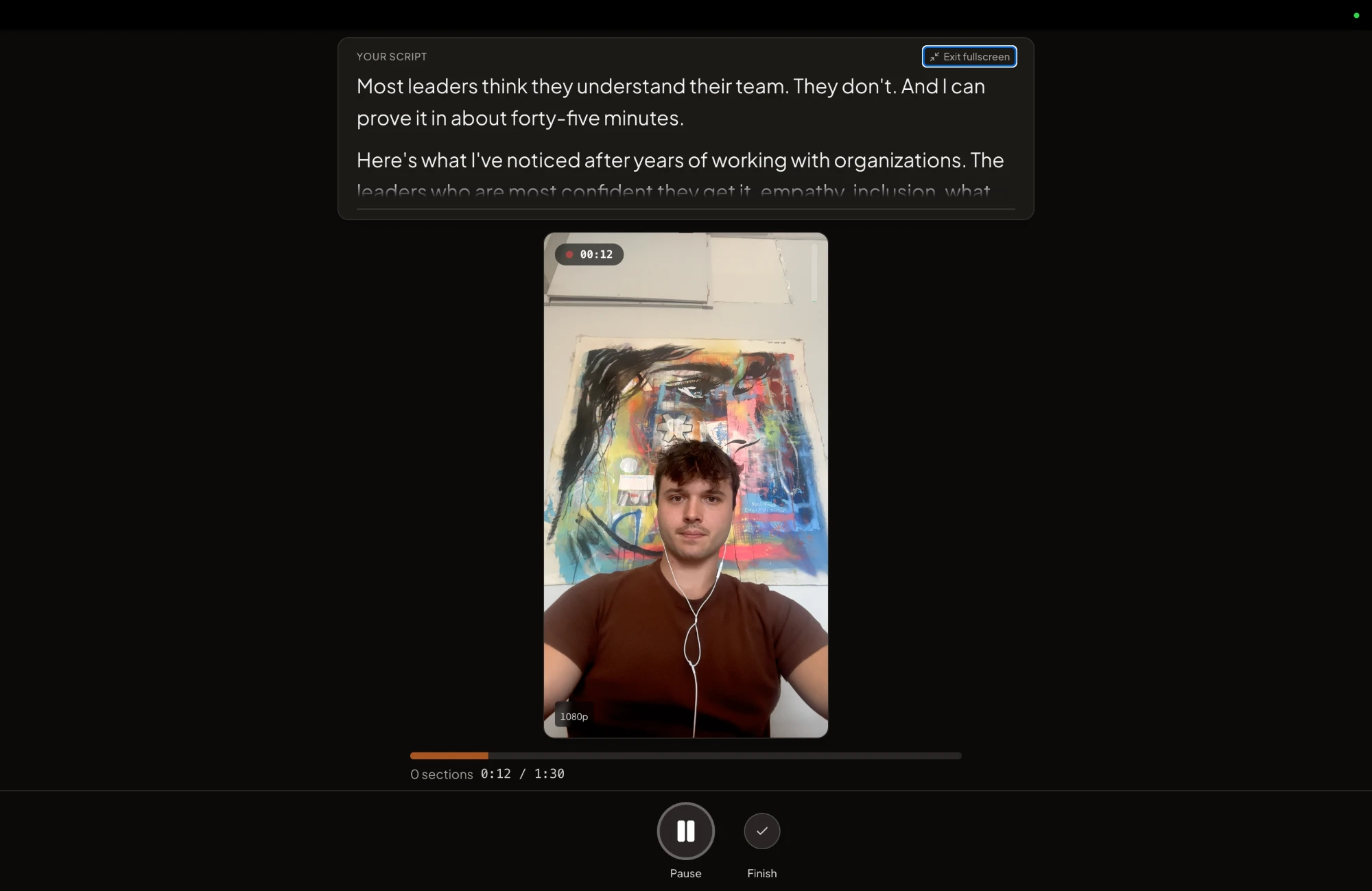
CreateSocial is built for those recorded videos. Its teleprompter sits in its own recording studio, and eye contact correction in the editor fixes your eyes after the take. For every video you record instead of a call, or after one, it does the whole job:
- The teleprompter sits directly above your camera preview. Scroll it by hand, or set a pace from 80 to 260 words per minute and change it mid-take.
- You record in sections. Fumble a line, delete the last section, and the teleprompter rewinds to where it started.
- In the editor, eye contact correction adjusts your eyes so you appear to be looking at the camera, even where you glanced at the script.
- Delete words from the transcript and they are cut from the video. Remove Silences takes out the pauses in one click, and subtitles go on in 11 styles.
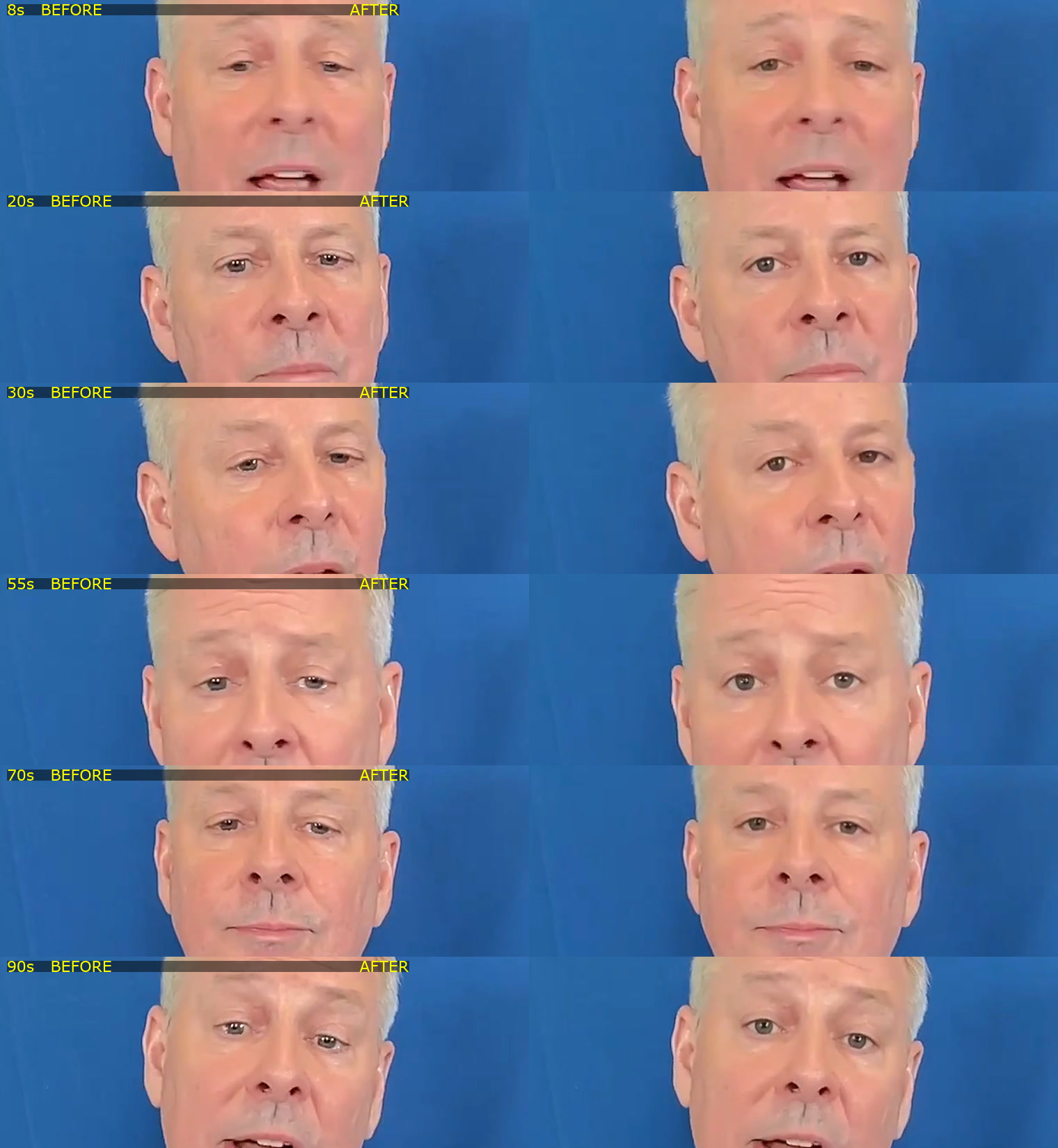
Our review of eye contact correction walks through that video and how the fix works. If the camera itself is the hard part, our guide to looking natural on camera covers the rest.
Turn the Zoom recording itself into clips and posts
Your best material may already sit in a Zoom recording of your own webinar, workshop or talk. Set up the recording so you can reuse it.
- Record to the cloud with active speaker on. In that layout, Zoom "captures only the video of the active speaker, switching views as different participants speak." Set it in the web portal's Recording settings before the meeting starts, because "changes made after the meeting begins won't apply." If you share slides, also tick "Record active speaker, gallery view and shared screen separately," so the speaker video comes as its own file.
- Download the MP4. Zoom saves the video as an MP4 file.
- Upload it to CreateSocial. It takes MP4, MOV or WebM files up to 2GB and processes them like a recording.
- Run Find Clips. On any video of 8 minutes or longer, it suggests zero to five standalone clips of about 15 to 90 seconds, each with a strength score, and never pads the list with weak moments. A suggestion can stitch a setup and its payoff from different parts of the talk. Each clip becomes its own 9:16 video with subtitles.
- Fix the eyes on each clip. Run eye contact correction on each clip in the editor, so every one looks at the camera.
- Write the posts. Turn the best answer into a LinkedIn post, a carousel or an email to your list, then schedule it all.
A webinar you already gave is the cheapest content you will ever make. Record it like you mean to reuse it.
How CreateSocial turns your webinars and videos into clients
CreateSocial helps you build a personal brand that brings in clients, speaking gigs and customers, without content taking over your week. It learns what you know and runs the whole content week, video and written: ideas, scripts, posts, recording, editing, thumbnails and scheduling. Your calls are where you close. Your content is what fills the calendar with people who already trust you.
- Scripts from what you already know. Add your website, past videos, documents and client stories to your knowledge base. CreateSocial turns them into 80 personalized ideas a month, each with a hook and talking points or a full script. "Ask me first" asks you a few questions before it writes, so the script carries your real story.
- A teleprompter by the lens. Read at your desk or on the iPhone app. Scroll by hand or at your words-per-minute pace, record in sections and retake a fumbled one with a tap. Teaching a course lesson? Record your screen with your camera as a bubble.
- An edit that hides the reading. Eye contact correction, cutting by transcript, Remove Silences in one click and subtitles in 11 styles. The take you were worried about becomes one you post.
- Webinars become clips. Upload the Zoom MP4 and Find Clips picks the moments that stand alone, each cut to vertical with subtitles.
- Every video becomes written posts. A LinkedIn post, a carousel, an X thread, a blog post or an email to your list, in your voice. Or write any of them with no video at all.
- Scheduled and posted for you. Schedule to TikTok, Instagram, YouTube, LinkedIn, Facebook and X, each with a caption written for that platform, and we post it for you once your accounts are connected.
Also in the one plan: Trending Now every Monday with what your niche is talking about, competitor tracking, Dual mode for 16:9 and 9:16 in one take, reaction videos in Layout or Stitch mode, green screen and virtual backgrounds with or without a real green screen, platform safe-zone guides for TikTok, Reels and Shorts, B-roll with free stock video search, YouTube thumbnails made from your video and photos of you, and an Analytics page with followers, views, likes, comments and shares for your connected TikTok, Instagram, YouTube, LinkedIn and Facebook accounts.
One last thing, about who builds it. I'm Ben Moore, and I built CreateSocial on my own, bootstrapped, here in Cincinnati, Ohio, so you talk to me directly. Feature requests come to me, and a lot of what customers ask for gets built. Before CreateSocial, my agency generated millions of followers and millions of dollars in revenue for its clients, and I've generated hundreds of millions of views.
It is $129 a month, or $99 a month billed annually, with no add-ons and no per-feature charges. Start your free trial and record the video version of your best call answer today. Want a plan built around your offer first? Book a free strategy call with me.
Set it up before your next call
- Take a ruler to your screen. Measure from the lens to where their face and your notes sit. Anything more than 2 inches below the lens moves up.
- Open a narrow notes window under the webcam and paste in the template above.
- Hide your self view, and share one window, never the screen your notes are on.
- For your next webinar, turn on cloud recording with active speaker, so the hour can become clips.
Then take the question prospects ask most and answer it on camera, with the script by the lens. A free CreateSocial trial gives you the teleprompter, the eye contact correction and the schedule to post it this week.
Questions people ask
Can you use a teleprompter on Zoom?
Yes, though Zoom has no teleprompter of its own. Put your script in a narrow window right under the webcam, add a teleprompter app from the Zoom App Marketplace, or use a glass prompter in front of the camera.
Is there a free teleprompter for Zoom meetings?
Yes. Any plain text window pushed up under your webcam costs nothing and works in every meeting. Free browser teleprompters do the same job and can scroll for you.
How do I read a speech on Zoom without looking down?
You will look down a little, so make the drop small. Put the speech in a narrow window right under the webcam, keep the line you read within an inch of the lens, and keep lines short so your eyes do not sweep sideways. Rehearse it twice so you glance at it instead of reading it.
Does Zoom have eye contact correction?
Not that we could find in Zoom support pages or release notes. On supported Windows PCs, Windows Studio Effects corrects your gaze live in any app that uses the camera, Zoom included. NVIDIA Broadcast does the same on an RTX 2060 or better, through a virtual camera you pick in Zoom.
What is the best teleprompter setup for Zoom calls?
For most desk calls, a narrow notes window right under the webcam is enough. For true on-lens eye contact, use a glass prompter that shows the meeting window. For recorded videos, use a recording studio with a teleprompter and eye contact correction.