

The short answer (updated November 2026):
- To post a clip on YouTube, upload it like any video. On a computer, open YouTube Studio and click Create, then Upload videos. On a phone, open the YouTube app and tap Create, then Upload a video.
- A clip that is square or vertical and 3 minutes or less posts as a Short. Wider or longer, it posts as a regular video.
- If the long video is already on your channel, the Clips and Shorts tool in YouTube Studio cuts the Short for you and links it to the full video.
- The scissors Clip button for other people's videos is on its way out. In April 2026, YouTube named Share at Timestamp as its replacement.
- Good clips make sense to a stranger: one question, one answer, a finished last sentence. In a webinar, start with the Q&A.
You have a 45-minute webinar, a podcast episode or a long YouTube video. Somewhere in it are four or five answers good enough to stand alone, and you want them on YouTube as Shorts. You don't want to lose a weekend to an editor.
Cut each answer to 3 minutes or less, make it vertical and upload it from YouTube Studio or the YouTube app. YouTube posts it as a Short. The steps for computer and phone come first. Then a checklist for picking clips, and one webinar worked through clip by clip.
A clip posts as a Short when it's vertical and 3 minutes or less
You never tag a clip as a Short. YouTube sorts every upload by its shape and its length. YouTube's Help Center says a video uploaded on or after October 15, 2024 "with a square or vertical aspect ratio up to three minutes in length will be categorized as Shorts." Anything else is a regular video.
| Your clip | How YouTube posts it | Source |
|---|---|---|
| Vertical (9:16) or square, 3:00 or less | As a Short, in the Shorts feed | Three-minute Shorts |
| Vertical, longer than 3:00 | As a regular video. In the app, Edit into a Short trims it to 3:00 or less. | Upload YouTube Shorts (phone) |
| Horizontal (16:9), any length | As a regular video. YouTube's own advice for staying out of Shorts is to "use a wider aspect ratio such as 16:9." | Three-minute Shorts |
For a clip cut from a talk, you want the first row. The Shorts feed is where strangers find you, and a vertical frame fills their phone. For length, our guide to how long YouTube Shorts can be sets it by the Short's job. Start at 30 to 60 seconds for reach.
How to post a clip from a computer, in YouTube Studio
On a computer, every clip goes up through YouTube Studio. The steps follow YouTube's Upload YouTube Shorts page.
- Export the clip as a vertical file of 3 minutes or less.
- Sign in to YouTube Studio.
- Click Create in the top-right corner, then Upload videos.
- Select the clip. You can pick up to 15 short videos at once.
- Add the title and details. With several clips, click Edit draft on each one before you publish.
- On the visibility step, publish now, or click Schedule and set the date, time and time zone.
Checked against YouTube's Help Center on November 2, 2026.
Step 4 saves the most time. Cut five clips, upload them in one sitting and schedule them across two weeks. A scheduled video stays private until its time, then goes public on its own.
Posting the same clips to Instagram and TikTok too? CreateSocial schedules each clip to YouTube, TikTok, Instagram, LinkedIn, Facebook and X with a caption written for each platform, and we post it for you once your accounts are connected. On YouTube, a vertical clip of 3 minutes or less gets a Shorts caption: a short title and a one- or two-sentence description.
How to post a clip from your phone, in the YouTube app
On a phone, the YouTube app does the whole job. These steps match the iPhone and Android versions of the same Help page.
- Save the clip to your camera roll.
- Open the YouTube app and tap Create, then Upload a video.
- Pick the clip. A square or vertical clip of up to 3 minutes opens in a trim editor. Drag the ends of the bar to tighten the start and the finish.
- Tap Next. Add text, filters or music if you want them, or skip this screen.
- Tap Next again. Add a title of up to 100 characters and set the privacy.
- Choose your audience (made for kids or not), then tap Upload.
The YouTube Studio app works the same way: tap Create, then Upload a video, fill in the details and tap Upload Short.
Trim harder than feels comfortable. Start on the first word of the point, not on a breath or an "um." To choose the frame that shows before anyone taps play, see the Shorts section of our YouTube thumbnail size guide.
If the long video is already on YouTube, cut the clip inside YouTube Studio
When the full video already sits on your channel, YouTube will cut the clip for you. The tool is called Clips and Shorts, and it lives in YouTube Studio on a computer.
- In YouTube Studio, go to Content, then Videos, and open the long video.
- Select Clips and Shorts in the left menu. Click Create clip or Short, then choose Short.
- Highlight the words you want in the transcript and click Confirm selection. Or type the start and end times.
- Click Preview Short and check the captions.
- Click Create draft, then finish the usual upload steps.
The best part is the link. The full video becomes the Short's related video on its own, unless the Short is private, unlisted or made for kids. Captions go on automatically where they're available. In the US, the UK, Canada and seven other countries, the tool also suggests moments to clip. YouTube says you won't be penalized for reusing your own content this way, and it works on archived live streams, too.
The phone version is Edit into a Short. Open your video's watch page, tap Remix, then Edit into a Short, and select up to 60 seconds. It works on public videos you uploaded.
Both tools start from a video that is already on YouTube. Plenty of a coach's best material never went up, like the client webinar that lives as a Zoom file. For those, start from the file. Upload the recording to CreateSocial, and on any video of 8 minutes or more, Find Clips suggests up to five standalone clips of about 15 to 90 seconds. Each comes with a strength score, and the list is never padded with weak moments. Every clip you pick becomes its own vertical video with subtitles.
How to pick clips that work: seven checks
A clip works when someone who never saw the webinar gets the point from the clip alone. The YouTube Official Blog puts it the same way: a clipped Short should be "a standalone piece of value that makes sense without outside context." Run each candidate through these seven checks.
- It answers one question. If you can't say the question in one line, the clip holds two ideas, or none.
- The first sentence works cold. Cut any opening that leans on earlier minutes, like "so," "as I said" or "the second one."
- The viewer's problem shows up in the first few seconds, in the words a client would use.
- It carries proof. An example, a number or a short story with the details changed. A claim alone is a quote card.
- It doesn't need the screen. "As you can see on this slide" means nothing in a vertical crop of your face.
- It ends on a finished thought, not halfway into the next point.
- It runs 15 to 90 seconds, and under a minute when the job is reach.
A clip that fails one check can often be saved. Start it a sentence later. Or join a question to the answer you gave twenty minutes later.
Our view: clip the Q&A before you clip the slides. A Q&A answer comes with its own setup, the question, so it passes the stranger test by design. It also shows the part buyers care about. "People don't just want to know that you have knowledge. They want to see how you apply it," as I say in my video on the content strategy that actually gets clients. The presentation fails more often. It was built as one argument, and each slide leans on the one before. In the worked example below, two of the five Shorts come from the last ten minutes.
Find Clips looks for exactly these standalone moments. A suggestion can stitch two or three moments from different parts of the video into one clip, so a question asked at minute 5 can meet its answer at minute 40. Silences you removed and words you deleted stay out of every clip. For a test you can run on any clip from any tool, see the cold-viewer test for clips.
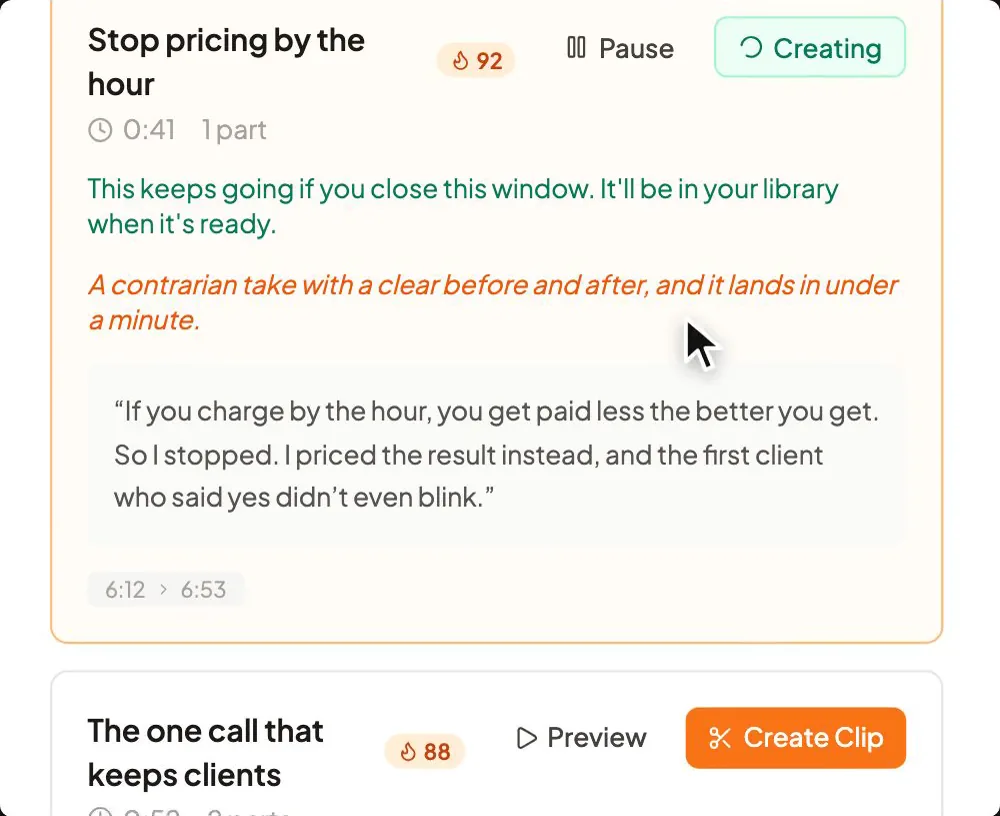
Worked example: one 45-minute webinar, five Shorts
Here are the seven checks applied to a webinar by a hypothetical pricing consultant who works with agency owners. The title: "How to raise your prices without losing your best clients." It runs 45 minutes: a talk, then Q&A from minute 35, then a short offer.
| Short | From | Length | First line | Why it stands alone |
|---|---|---|---|---|
| 1 | 4:10 to 4:50 | 40 s | "Your price isn't too high. Your proposal is too vague." | A whole opinion in one breath, with the claim in the first line. |
| 2 | 12:30 to 13:25 | 55 s | "Put your biggest option first, even if nobody buys it." | One step of the method, with its own example. |
| 3 | 22:15 to 23:30 | 75 s | "Here's the email I send 60 days before a price rise." | A template read aloud. Viewers can copy it off the subtitles. |
| 4 | 37:50 to 38:35 | 45 s | "Do I tell existing clients first? Yes, and here's how." | The attendee's question gives a stranger all the context. |
| 5 | 5:20 to 5:30, then 40:30 to 41:15 | 55 s | "What if your best client walks when you raise your price?" | The question came early and the answer came late. Joined, they make one clip. |
| Left out | 14:00 to 17:00 | 3 min | "As you can see on this slide..." | It points at a screen the vertical crop loses. |
| Left out | 43:00 to 45:00 | 2 min | "If you'd like help with this..." | A pitch to people who sat through 43 minutes. A cold viewer didn't. |
Post the five over two weeks and lead with Short 1, because its hook is the broadest. Give every one the full webinar as its related video. Save the email template for later in the run, when some viewers already know the consultant's name. To set the day and the hour from your own audience data, see our guide to the best time to post on YouTube.
The same webinar holds more than clips. Each Short can become a LinkedIn post, and the email in Short 3 can go to the consultant's own list. Our roundup of content repurposing tools covers that written side.
Link every clip back to the full video
A clip finds the viewer, and the full video earns the trust. As I put it in my video on why more followers won't get you more clients, "Short form can reach more people for sure. Long form reaches more of the right people." So every Short should point at the long version.
YouTube's tool for this is the related video. In YouTube Studio, open Content, click the Short, choose a related video from your channel and save. Viewers see it as a clickable link under your channel handle. The linked video can be public or unlisted, so a webinar replay can stay off your channel page and still catch every Short's viewers. The feature needs advanced feature access. Channels with some history usually qualify on their own, or you can verify with an ID or a short video.
The link alone won't get the click. The YouTube Official Blog says to build the ask into the final 5 seconds: say where the full version is and point down at the link. It also says the first 5 to 10 seconds of the long video should deliver what the Short promised. For a webinar replay, that means cutting the welcome and the housekeeping before you upload it.
New to YouTube altogether? Start with our guide to how to start a YouTube channel, then come back with your first webinar.
Clipping someone else's video: YouTube is replacing the Clip button
If you came here to clip another channel's video, the scissors Clip button is on its way out. In April 2026, TeamYouTube said in a Help Community post that Share at Timestamp "will become the main way to share specific moments in videos, replacing the Clips feature." Existing clips stay viewable. A timestamp link can't set an end time or carry a custom description.
TeamYouTube gave no date for the switch, so you may still see the button for now. YouTube's own Clips article still walks through it, and on November 2, 2026, Google's AI Overview for this search still sent people to it. Don't build a habit on a feature YouTube has said it is replacing.
To share a moment instead, open the video on your phone, tap Share and turn on the start-time toggle, such as "2:30." On a computer, tick Start at and type the time. Then copy the link. The Share videos page has both versions. Clips you've already made stay in the YouTube app under You, then Your clips. Re-uploading another channel's footage as your own Short is a different matter. YouTube's upload page warns that copyrighted material can bring a Content ID claim or a takedown unless it's approved for your use.
How CreateSocial turns one webinar into a month of clips that bring in clients
CreateSocial helps coaches and consultants build a personal brand that brings in clients, speaking gigs and customers, without content taking over the week. It learns what you know and runs the whole content week, video and written: ideas, scripts, posts, recording, editing, thumbnails and scheduling. Here is the webinar plan from this page inside it.
- The webinar becomes the clips. Upload the replay, or a talk you gave at a conference. Find Clips picks out the moments a stranger would follow, scores each one, and hands you each pick as its own vertical video with subtitles. You choose which go out.
- Every clip reads on a phone. Subtitles go on in 11 styles for viewers scrolling with the sound off, and safe-zone guides for Shorts, Reels and TikTok sit over the 9:16 frame. Cut a clip yourself in 16:9? Switch to 9:16 moves it to a 1080 x 1920 canvas, subtitles and overlays included, and Zoom to Fit fills the frame.
- The replay gets cleaned up, too. Delete the welcome from the transcript and it leaves the video, and Remove Silences takes out the pauses. A YouTube thumbnail made from your video and photos of you goes on the replay that every Short links to.
- The same webinar becomes written posts. Turn the webinar into LinkedIn posts, an email to your list, an X thread, a blog post or a LinkedIn carousel you export as a PDF or PNG.
- Your clips go out on schedule. Schedule each clip to TikTok, Instagram, YouTube, LinkedIn, Facebook and X, each with a caption written for that platform, and we post it for you once your accounts are connected. You get an email when each one is live. On YouTube, the Short uploads early as a private video and goes public at your time. Batch a month of clips in one sitting if you like.
- Next month's material is already waiting. Add your website, past videos and client stories to your knowledge base, and CreateSocial turns them into 80 personalized ideas a month. Trending Now adds what your niche is talking about every Monday, and "Ask me first" asks a few questions so the script tells your real story. Record between webinars at your desk or on the iPhone app, in sections, with the teleprompter near your camera. Eye contact correction fixes the glances at your script.
Also in the one plan: competitor tracking, Dual mode for 16:9 and 9:16 in one take, screen recording with your camera as a bubble, reaction videos in Layout or Stitch mode, virtual backgrounds with or without a real green screen, B-roll from free stock video, vertical covers made from your video and photos of you, and an Analytics page with followers, views, likes, comments and shares for your connected YouTube, TikTok, Instagram, LinkedIn and Facebook accounts.
There's a person behind all of it. I'm Ben Moore, and I built CreateSocial on my own, bootstrapped, here in Cincinnati, Ohio, so you talk to me directly. Feature requests come to me, and a lot of what customers ask for gets built. Before CreateSocial, my agency generated millions of followers and millions of dollars in revenue for its clients, and I've generated hundreds of millions of views.
It's $129 a month, or $99 a month billed annually, with no add-ons and no per-feature charges. Start your free trial and run your last webinar through Find Clips today. Want your clips mapped to your offer first? Book a free strategy call with me.
Clip your last webinar this week
Pick the most recent long recording you have. Then:
- Skip to the Q&A and note every question that got a full answer.
- Run each answer through the seven checks. Keep the ones that pass.
- Cut each to 3 minutes or less, vertical, starting on the first word of the point.
- Upload the replay to YouTube, public or unlisted, with the welcome trimmed off.
- Upload the clips in one sitting, schedule them over two weeks and set the replay as each one's related video.
No webinar to clip yet? These YouTube video ideas give you the long video first, and how to make YouTube Shorts covers recording them from scratch. Or let a free CreateSocial trial find the clips in the recording you already have.
Questions people ask
How do I post a clip on YouTube?
Upload it like any video. On a computer, open YouTube Studio and click Create, then Upload videos. On a phone, open the YouTube app and tap Create, then Upload a video. A square or vertical clip of 3 minutes or less posts as a Short.
Where are my clips on YouTube?
Clips you made with the Clip button are in the YouTube app under You, then Your clips. Shorts you cut with the Clips and Shorts tool in YouTube Studio are under Content, then Shorts, and on the source video's Clips and Shorts tab.
Do YouTube Clips still exist?
Clips already made still play. In April 2026, YouTube said Share at Timestamp will replace the Clips feature, and a timestamp link has no end time. Creators can still cut clips from their own videos in YouTube Studio.
How do I upload a video to YouTube from my iPhone?
Open the YouTube app, tap Create, then Upload a video, and pick the video. Tap Next, add a title of up to 100 characters and choose the privacy, then tap Upload. A vertical video of 3 minutes or less goes up as a Short.
Can I post a clip of someone else's YouTube video?
Not as your own upload without permission. YouTube says copyright-protected material in a Short you upload must be approved for your use, or it can bring a Content ID claim or a takedown. To share a moment, use Share at Timestamp instead.
How do I post a game or stream clip on YouTube?
Save the clip as a video file and upload it like any other. A widescreen game clip posts as a regular video, and a vertical one of 3 minutes or less posts as a Short. For a past live stream on your own channel, the clip tool in YouTube Studio can cut straight from the archive.